This article explains how to enable PDF viewing in Google Chrome for ecount ledger printing, so PDFs open correctly when you print.
📋 Overview
When Chrome’s PDF settings are disabled, ecount-generated PDF files may not open, showing a blank screen or error. Adjusting Chrome’s permissions restores proper PDF display.
🔧 Steps / How-to
- Open Google Chrome.
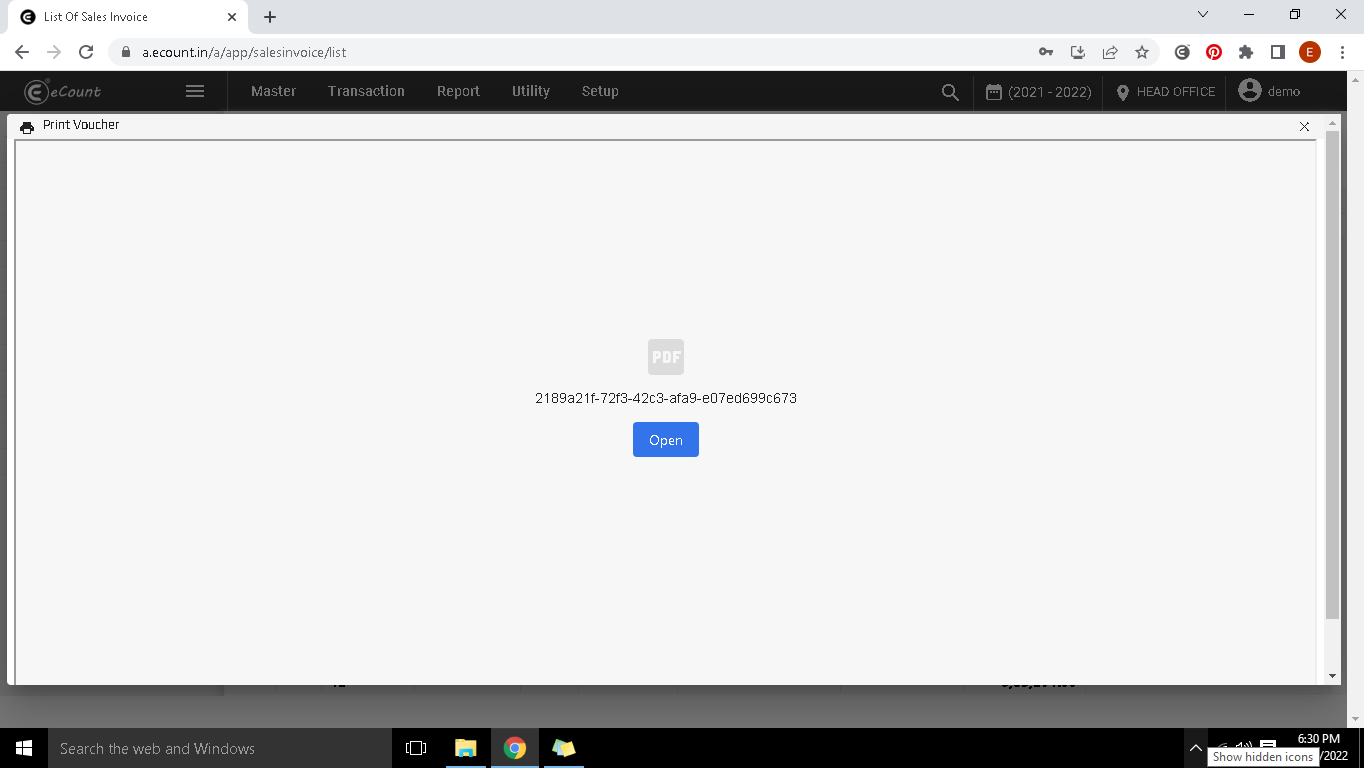
- Click the three‑dot menu at the top‑right and select Settings.
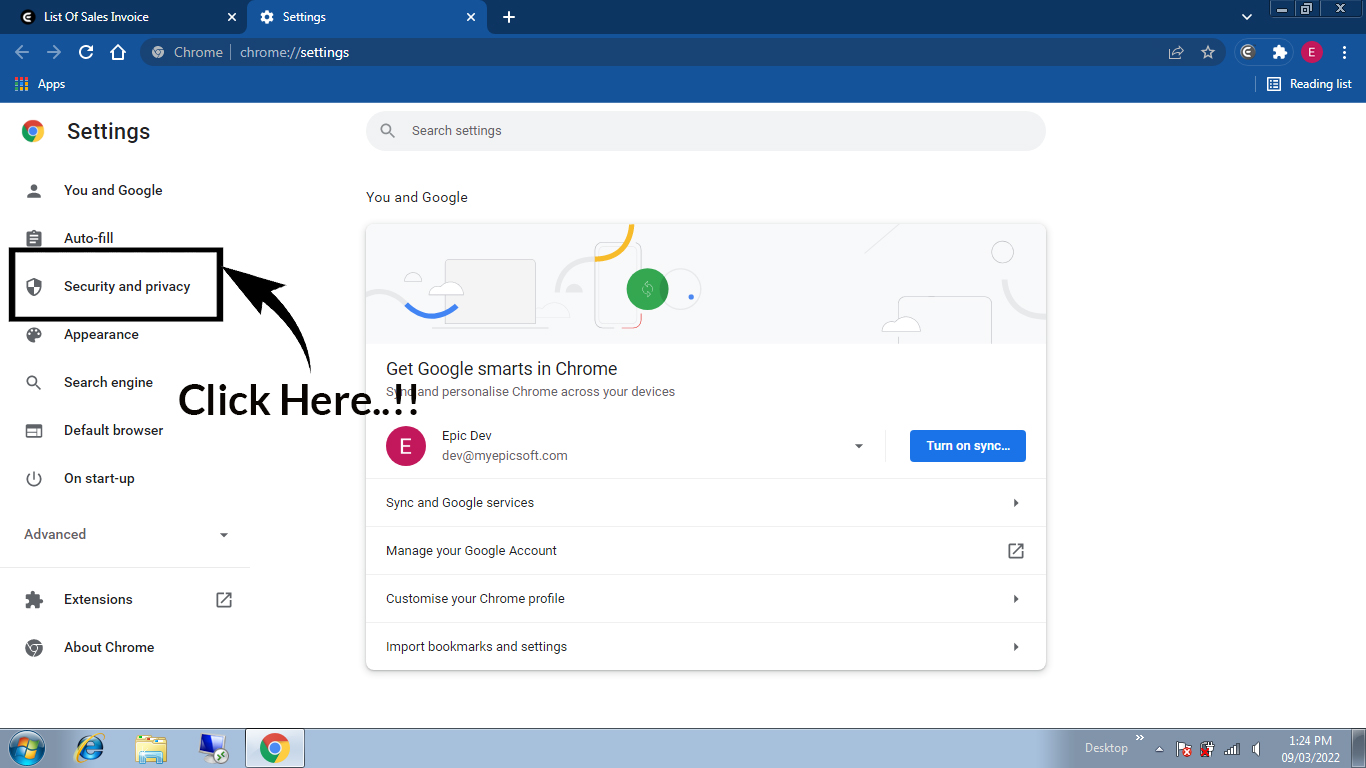
- In the left sidebar choose Security and Privacy.
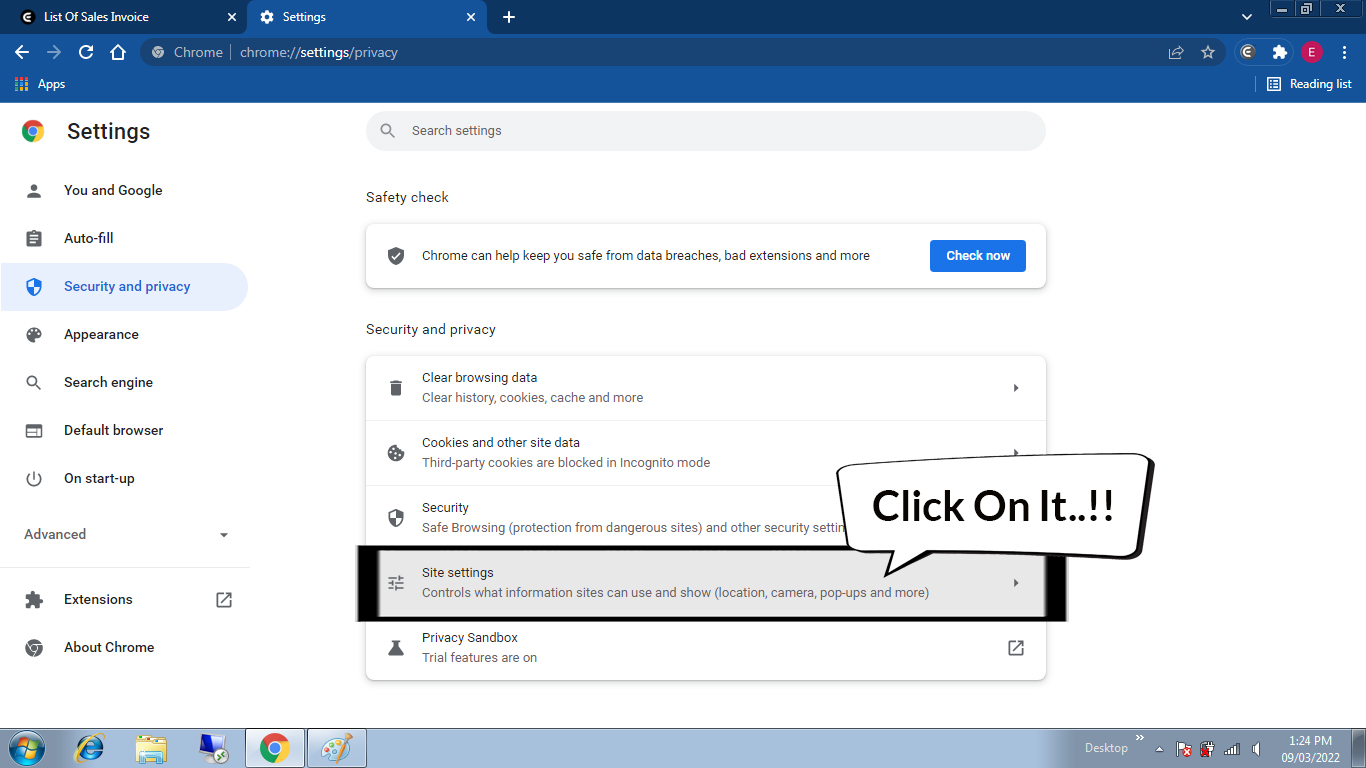
- Click Site Settings.
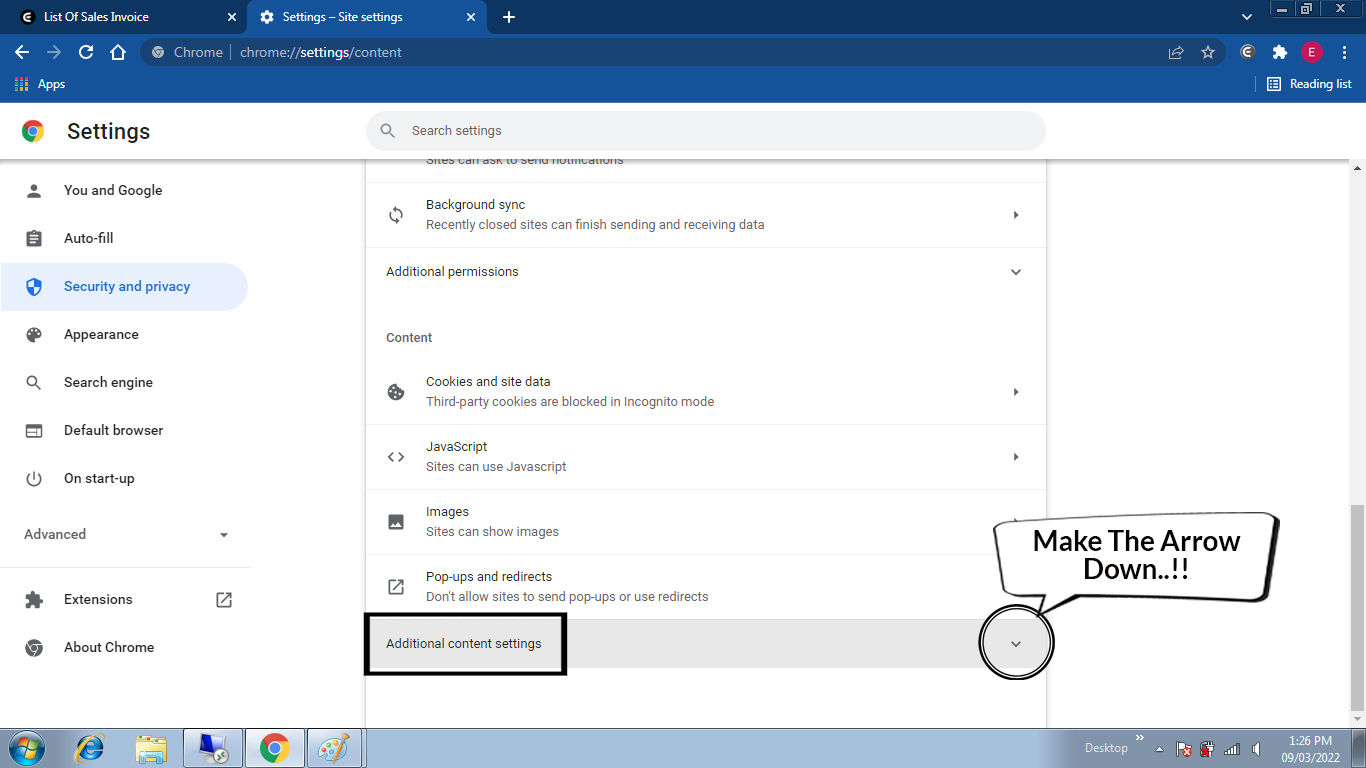
- Scroll to Additional Content Settings and expand it.
- Select PDF Documents.
- Turn on Open PDFs in Chrome and ensure the toggle is enabled.
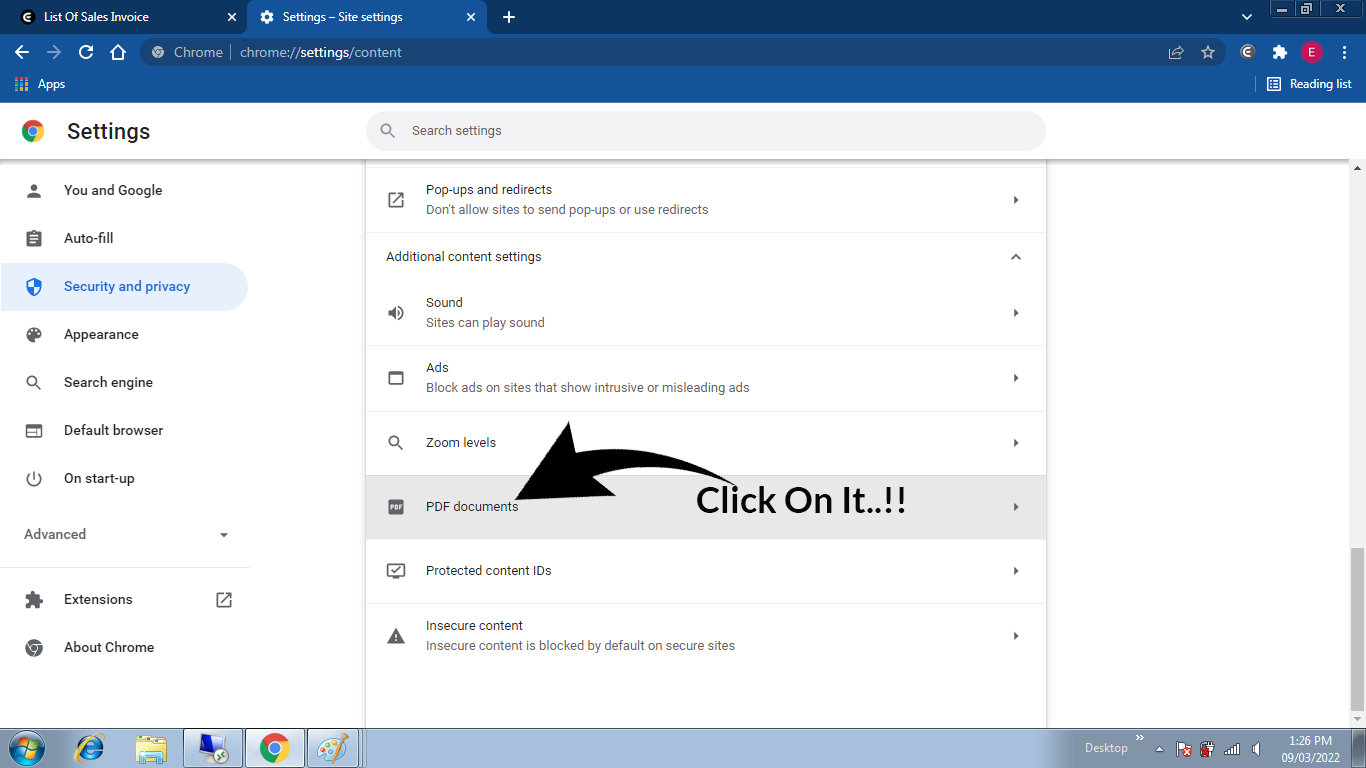
- Return to ecount, open the desired ledger, and click the PDF icon. The PDF should now open and download correctly.
💡 Tip: After changing the setting, restart Chrome to ensure the new configuration takes effect.
✅ Summary
- Enable “Open PDFs in Chrome” via Chrome Settings → Security and Privacy → Site Settings → PDF Documents.
- Refresh ecount and generate the PDF again.
- The PDF will open directly in Chrome without errors.