This article explains how to set the Expense Formula in an ecount Print File so that tax names and values are filled automatically.
📋 Overview
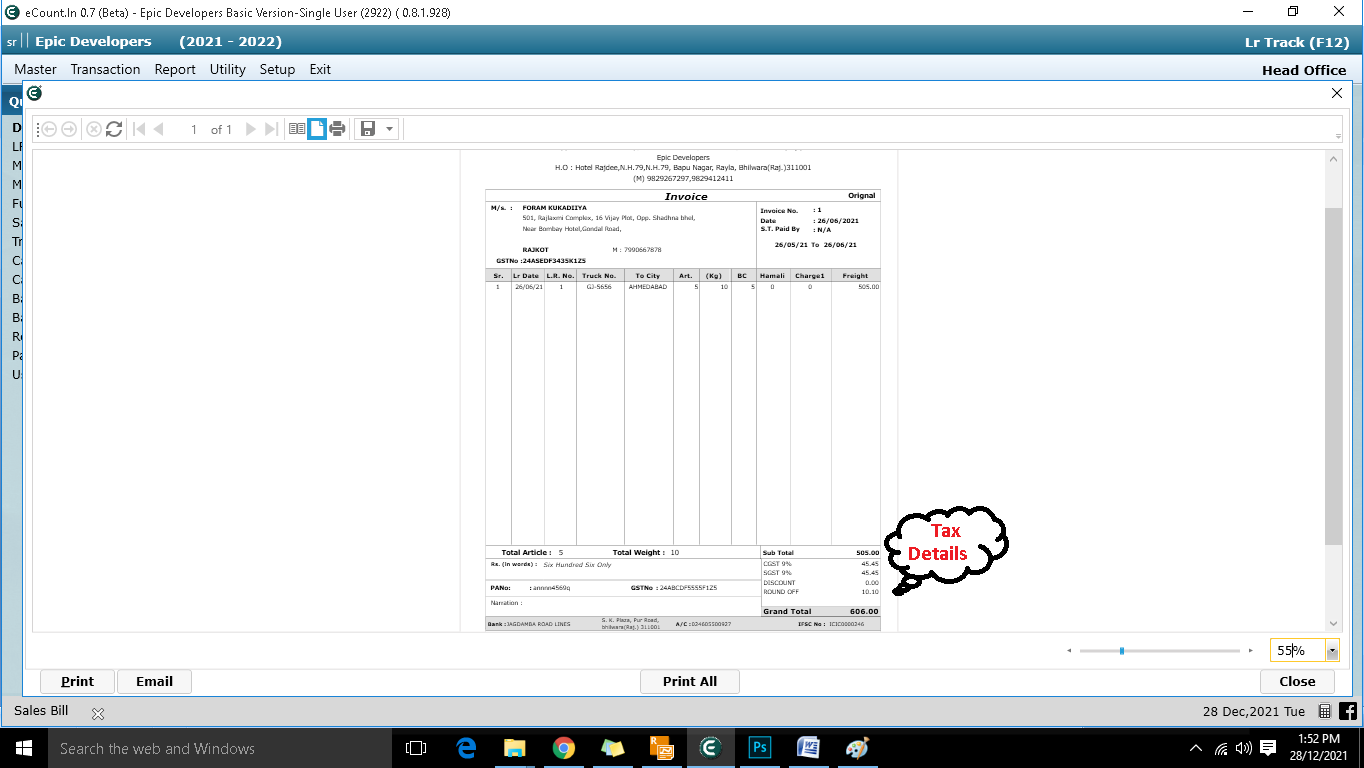
Expense Formula links a tax type to placeholders in the Print File. When a tax type is selected, ecount inserts the corresponding tax name and amount without manual entry.
🔧 Steps / How-to
- Open the Print File editor and click the cell where the tax information should appear.
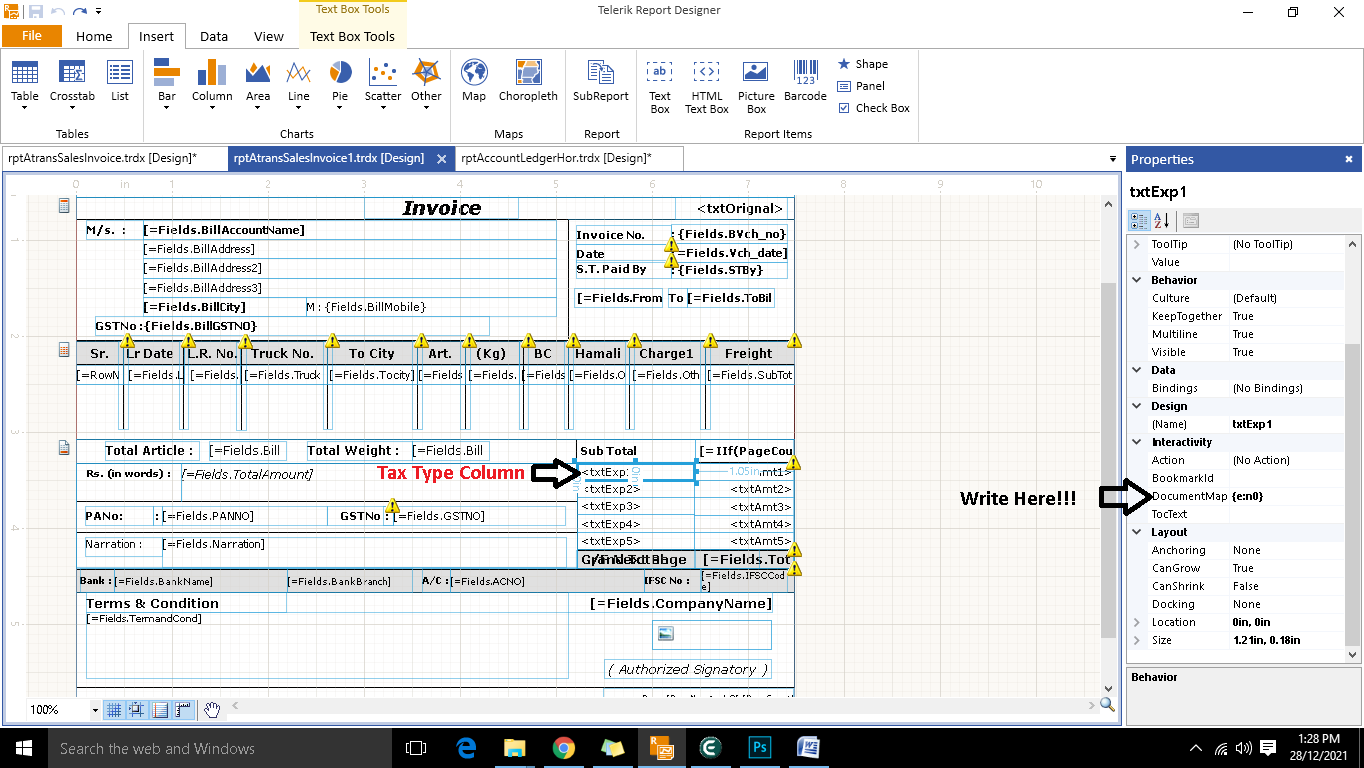
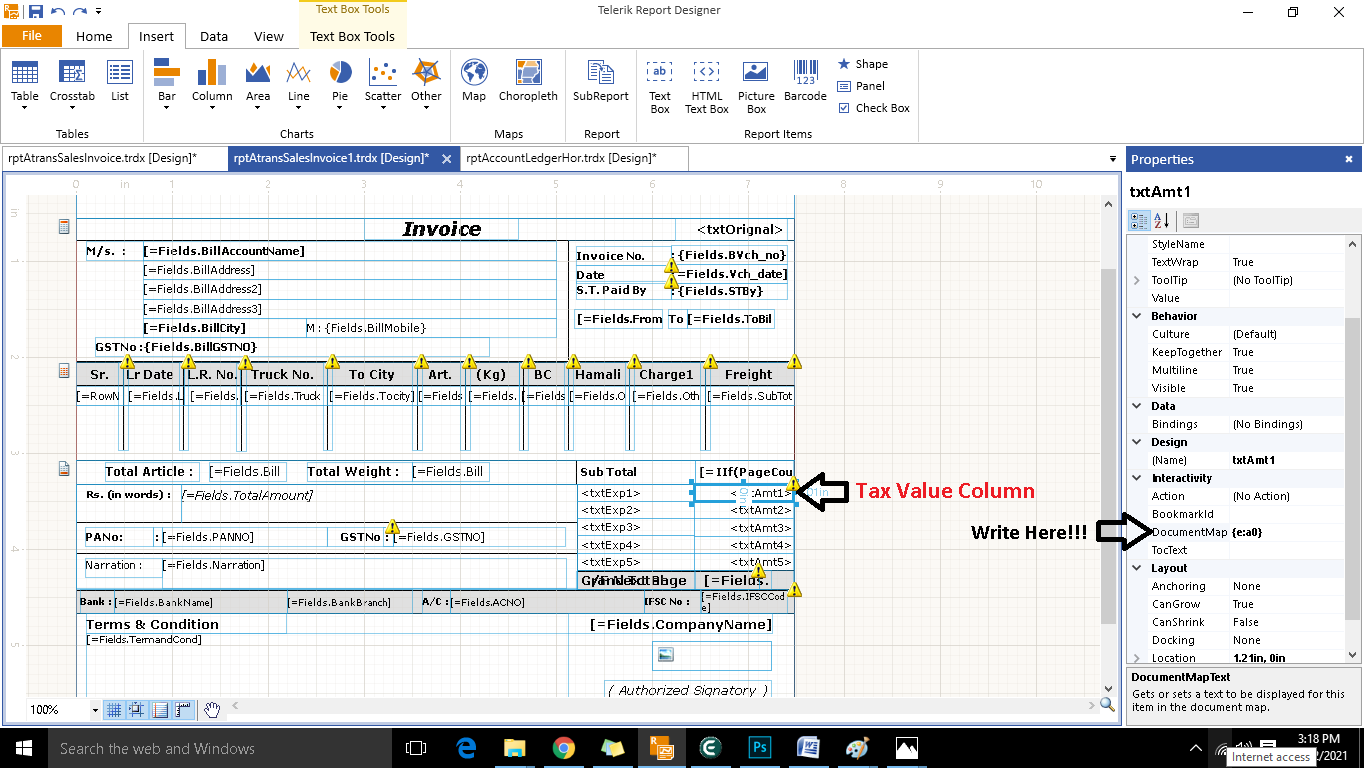
- In the right‑hand pane locate the DocumentMapType field.
- Enter the placeholder for the tax column name, such as
{e:n0},{e:n1},{e:n2}, … - Enter the placeholder for the tax value, such as
{e:a0},{e:a1},{e:a2}, … - Save the Print File. ecount will automatically set the tax name and value based on the selected tax type.
💡 Tip: Use sequential placeholders ({e:n0}/{e:a0}, {e:n1}/{e:a1}) to map multiple tax lines in the same document.
✅ Summary
- Open the Print File and select the target cell.
- Set DocumentMapType with tax name placeholders ({e:nX}) and tax value placeholders ({e:aX}).
- Save – ecount fills tax name and value automatically.