This article guides eCount users on integrating the E‑Way Bill API, covering registration on the GST portal and configuring eCount.
📋 Overview
The E‑Way Bill API enables automatic generation of e‑Way bills from eCount. Integration requires a GST Suvidha Provider (GSP) account and entering the credentials in eCount.
🔧 Steps / How‑to
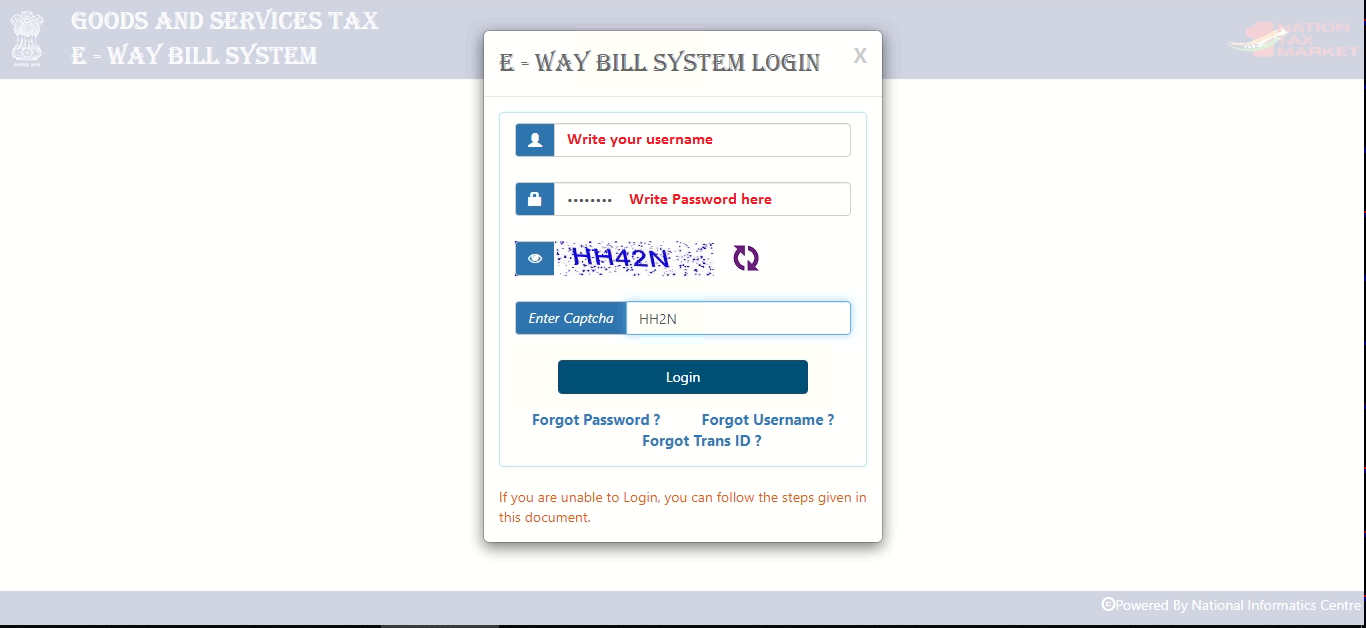
- Open the GST E‑Way Bill portal (https://ewaybillgst.gov.in/) and log in with your GST username and password.
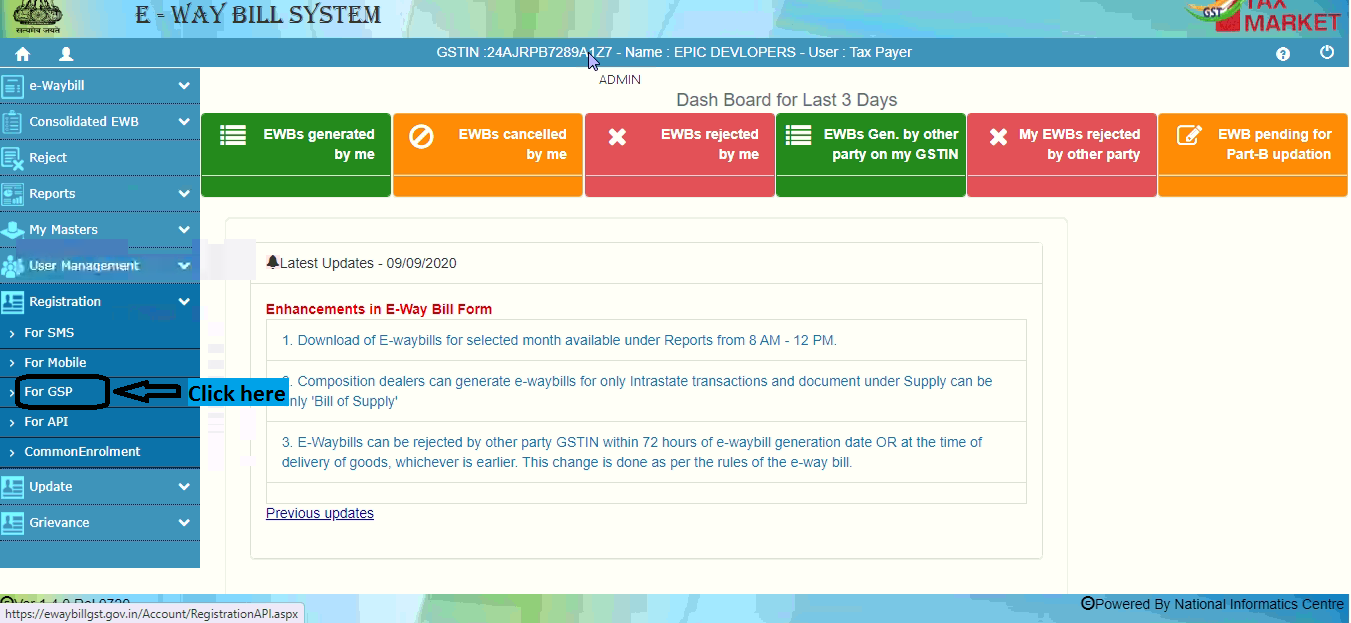
- After login, click the For GSP option on the right side.
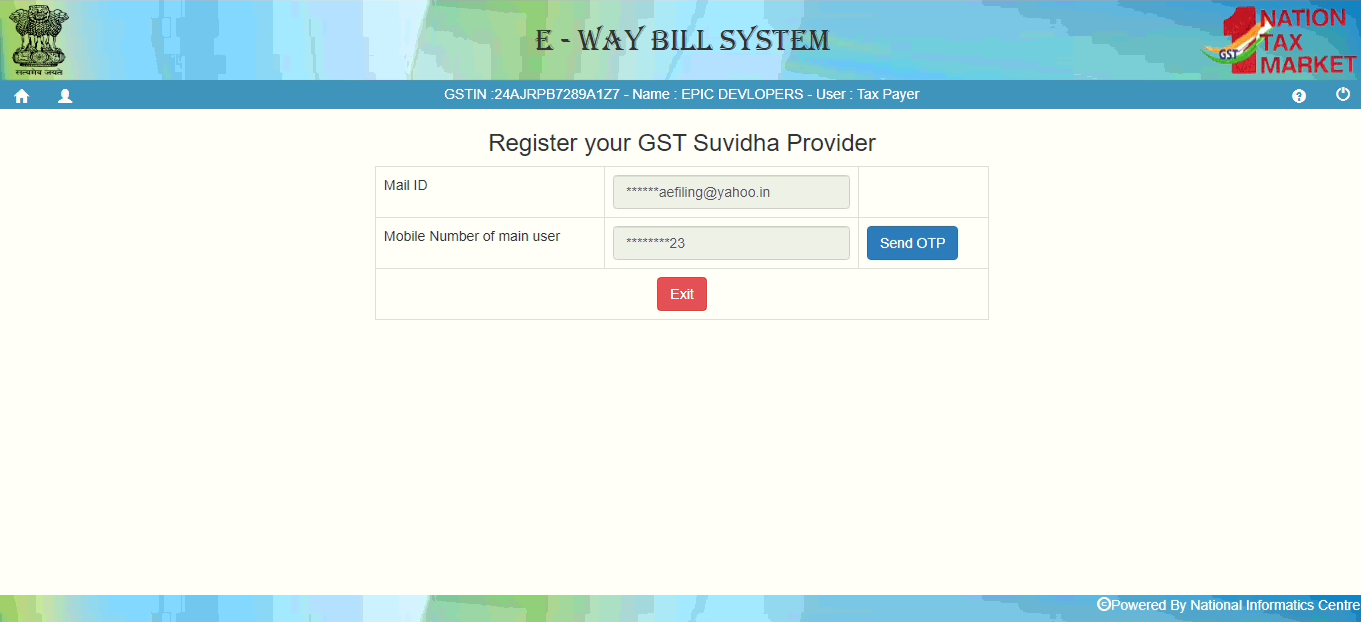
- Enter your email address and mobile number, then click Send OTP.
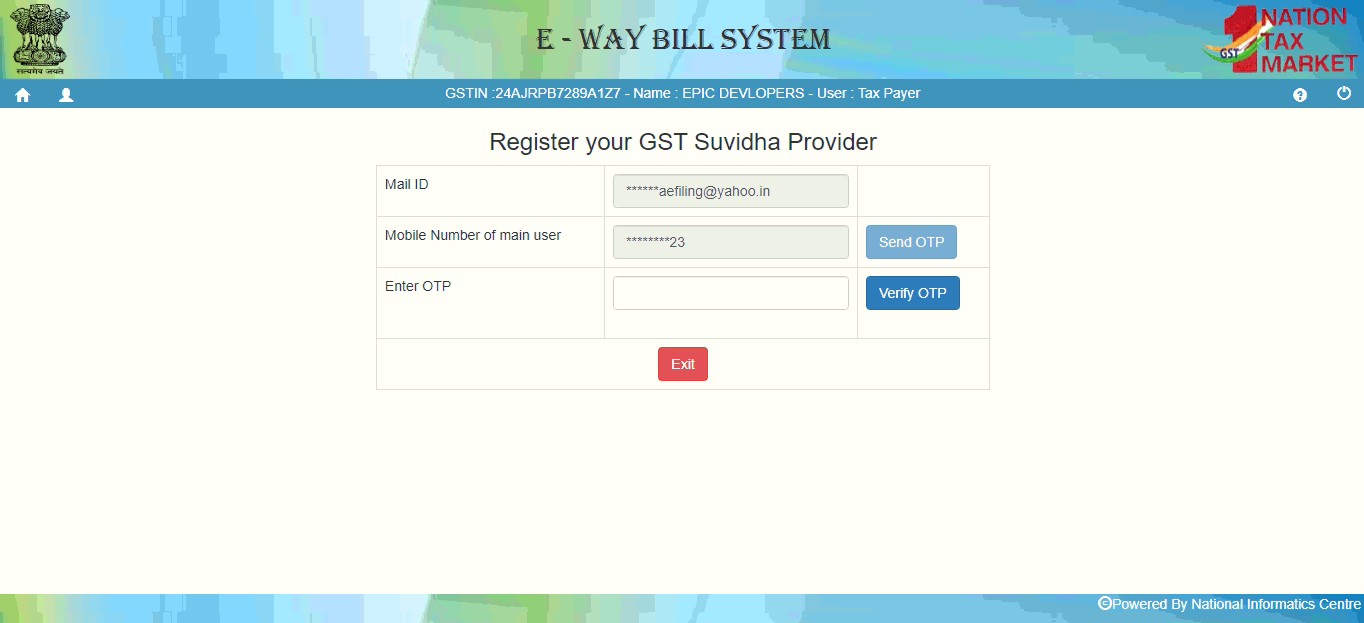
- Enter the OTP received on your phone or email and click Verify OTP.
- Once verification succeeds, you will see the registration confirmation screen.
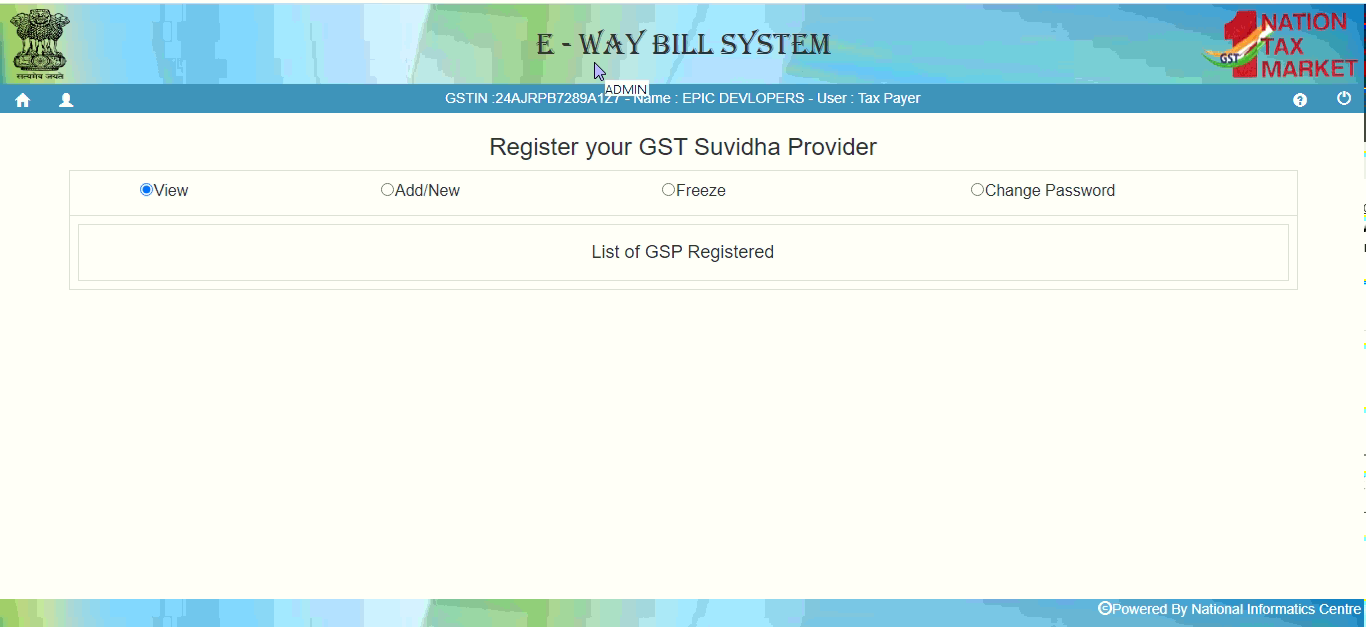
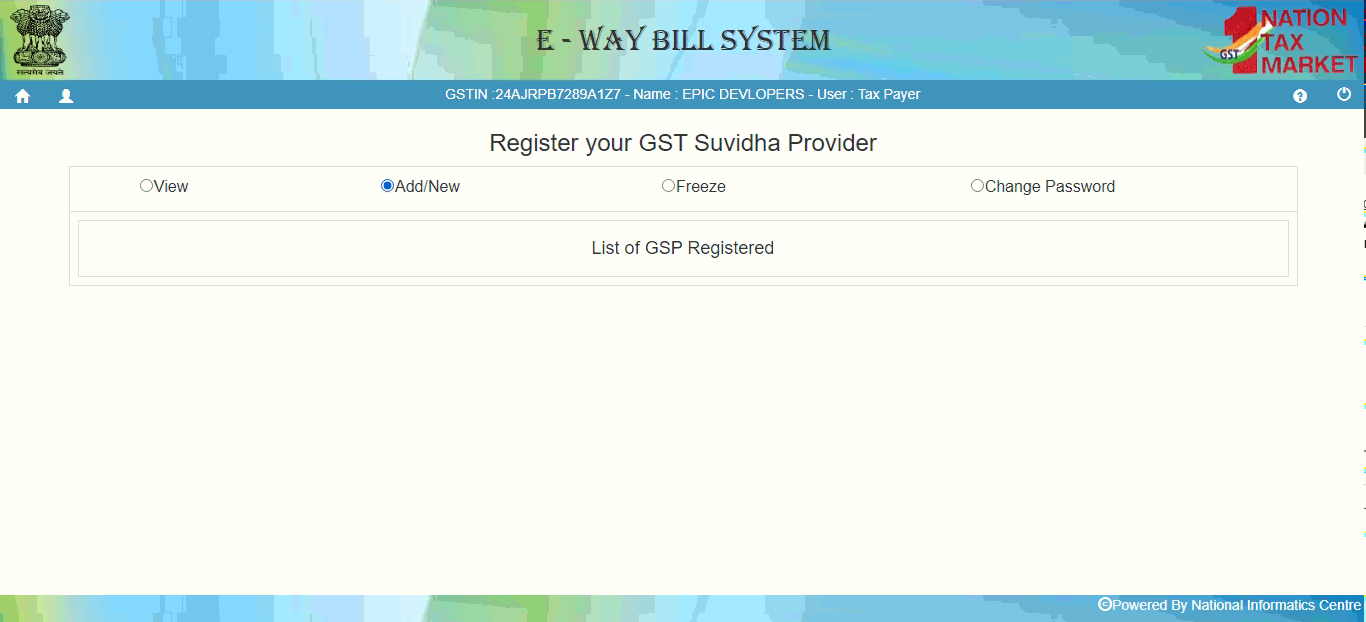
- Click Add/New to register with a GST Suvidha Provider.
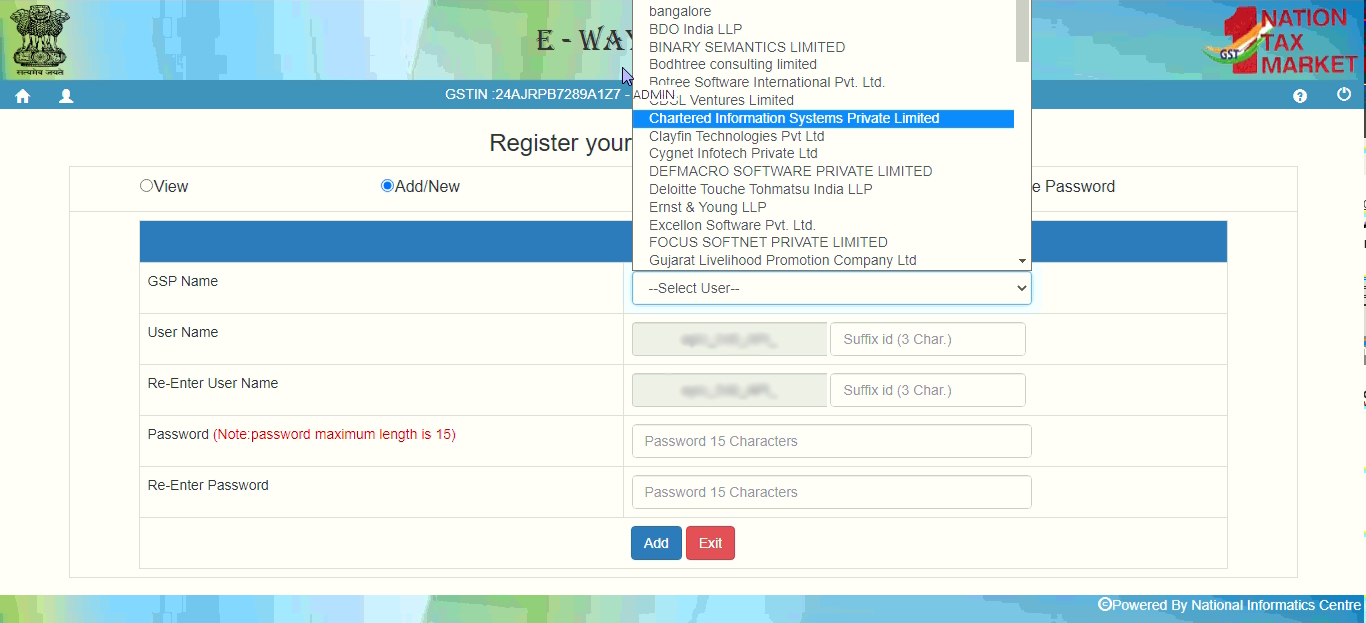
- Select the GSP named Chartered Information Systems Private Limited from the list.
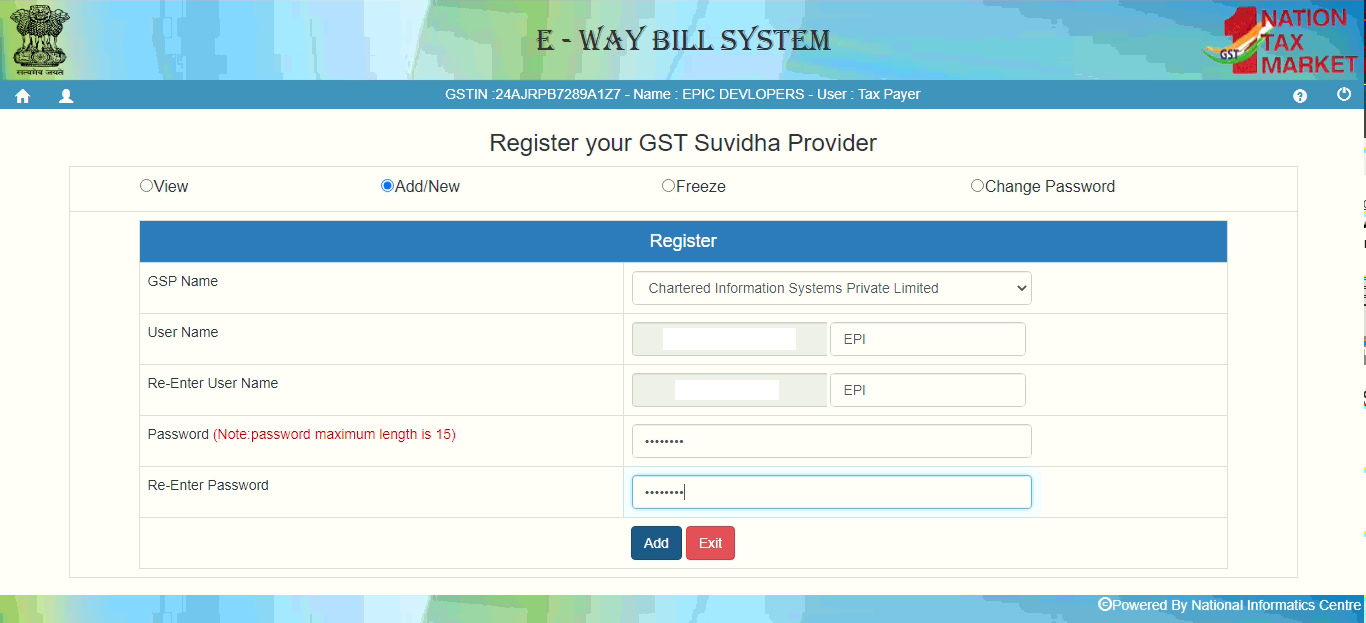
- The system fills your username automatically. Provide a three‑character suffix ID and create a password (max 15 characters).
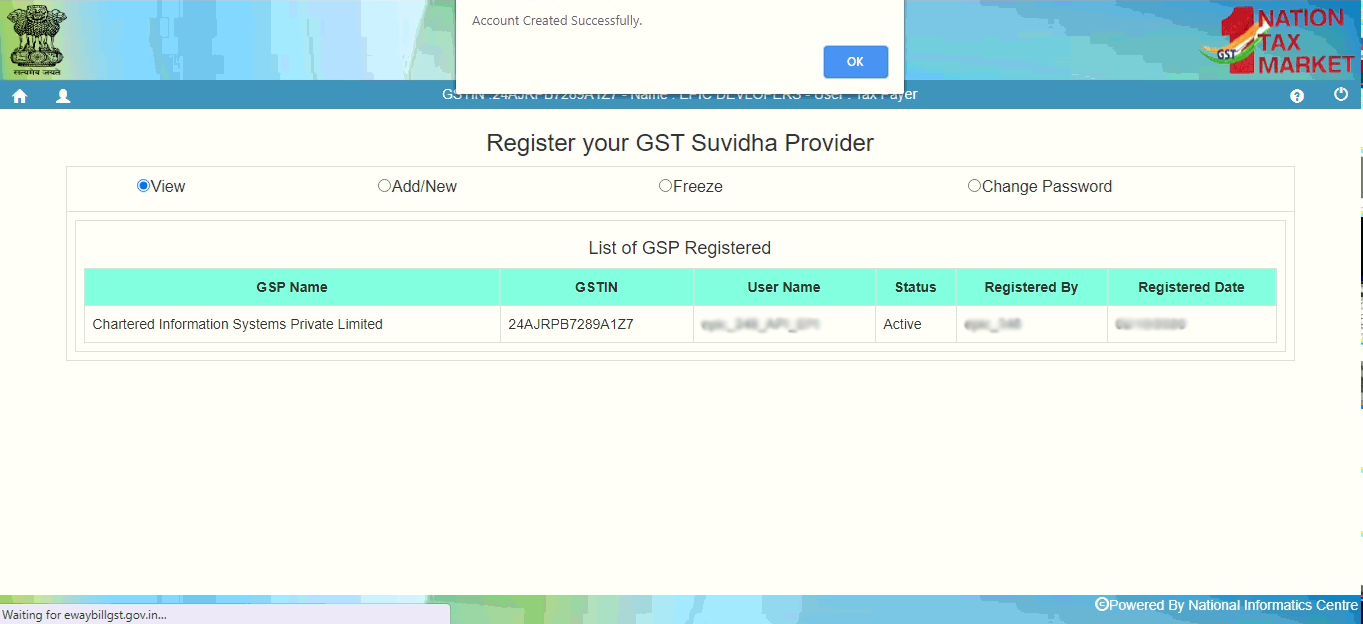
- Click ADD. A pop‑up confirms “Account Created Successfully” and shows your credentials.
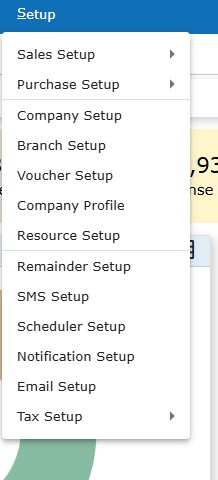
- Open eCount, go to Setup → Branch Setup.
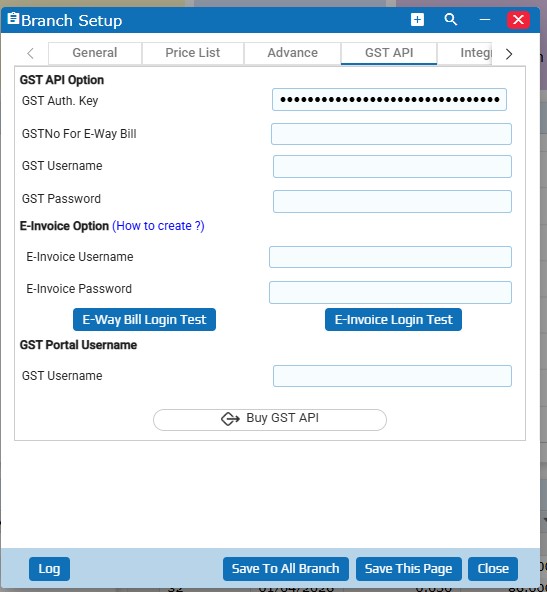
- In the Branch Setup window, select GST API and enter the authentication key (provided by Epic Developers), GSTIN, username (contains “API”), and password obtained in step 9. Click Save this page.
💡 Tip: Keep the authentication key handy; you will need it every time you set up a new branch.
⚙️ Settings / configuration
- Authentication Key – supplied by Epic Developers.
- GSTIN – your registered GST number.
- Username – the API user name received after GSP registration.
- Password – the password you created (max 15 characters).
✅ Summary
- Register on the GST E‑Way Bill portal and verify via OTP.
- Enroll with the GSP “Chartered Information Systems Private Limited”.
- Create a suffix ID and password, then note the credentials.
- Enter the GST API credentials in eCount’s Branch Setup and save.