This article explains how to change the header of voucher or ledger print files in ecount, including adding company details and customizing the design.
📋 Overview
The header appears at the top of printed vouchers and ledger reports. You can edit the company name, address, or replace the entire header layout.
🔧 Steps / How-to
- Open ecount and navigate to Setup → Company Profile / Report Setup. A pop‑up window opens.
- Enter your company name in the Company Name field and add any additional lines (address, phone, etc.) in the provided text area.
- Save the changes. The entered data will be used by default in all print files.
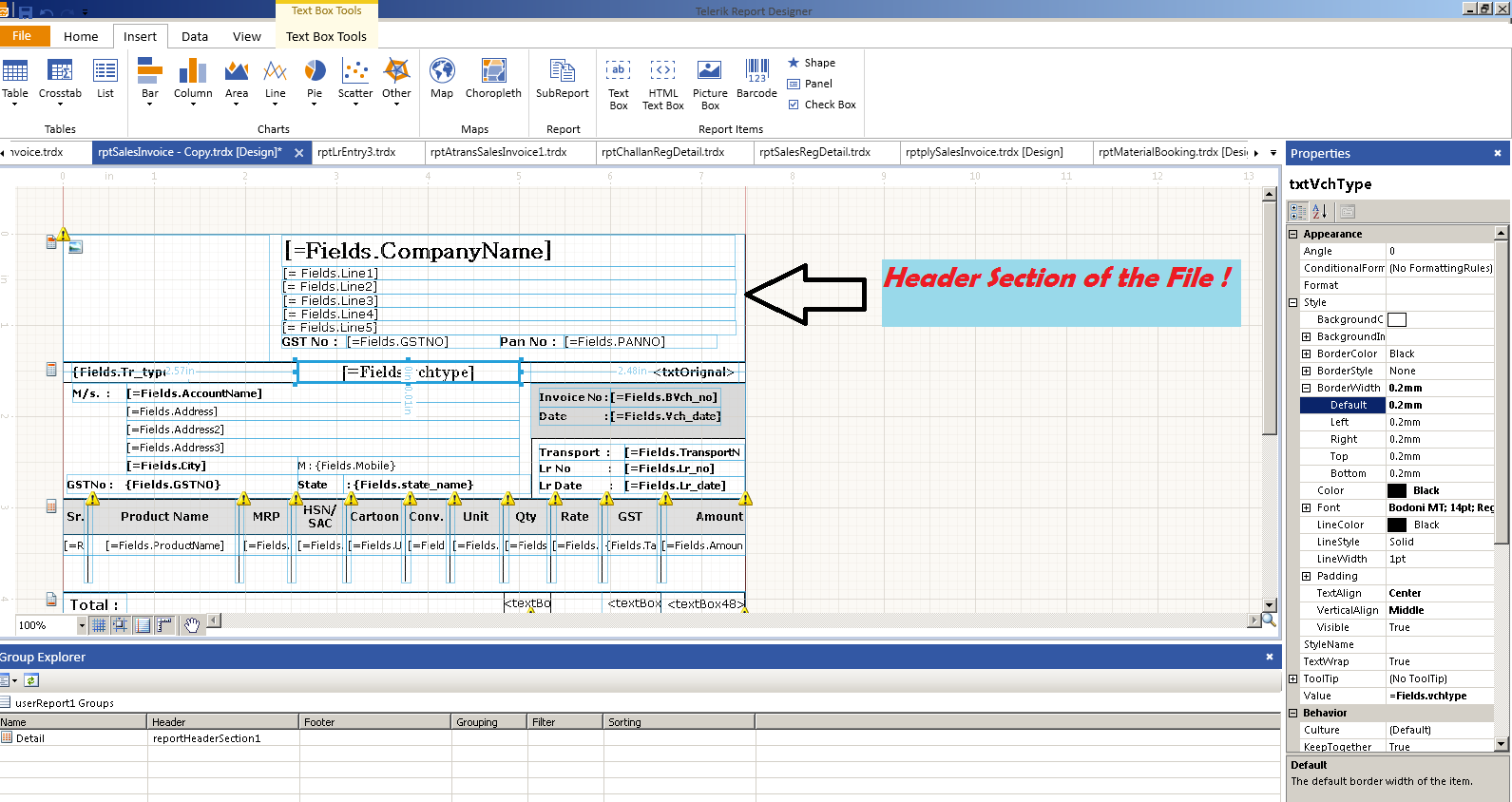
- If you need a completely custom header, open the voucher/ledger print file design. Locate the Header section and edit the layout as required.
- In the right‑hand Value field of the header element, type
Fields.CompanyName. - Set DocumentMapType to
rso the system pulls the company details automatically. - Save the design. To preview or download the print file, see the guide How to open and modify voucher printing design in ecount.
💡 Tip: Copy and paste Fields.CompanyName and the r value exactly as shown to avoid errors.
✅ Summary
- Enter company details in Setup → Company Profile / Report Setup.
- Open the print file design and edit the Header section.
- Set Value to
Fields.CompanyNameand DocumentMapType tor. - Save the design and verify the header on a printed voucher or ledger.