This article explains how to set Gujarati, Hindi, or any Unicode font for eCount print files.
📋 Overview
eCount print files use the Arial Unicode MS font to display non‑Latin characters correctly. Selecting the proper font ensures that Gujarati, Hindi, or other Unicode text prints as expected.
🔧 Steps / How-to
- Open the desired print file in eCount.
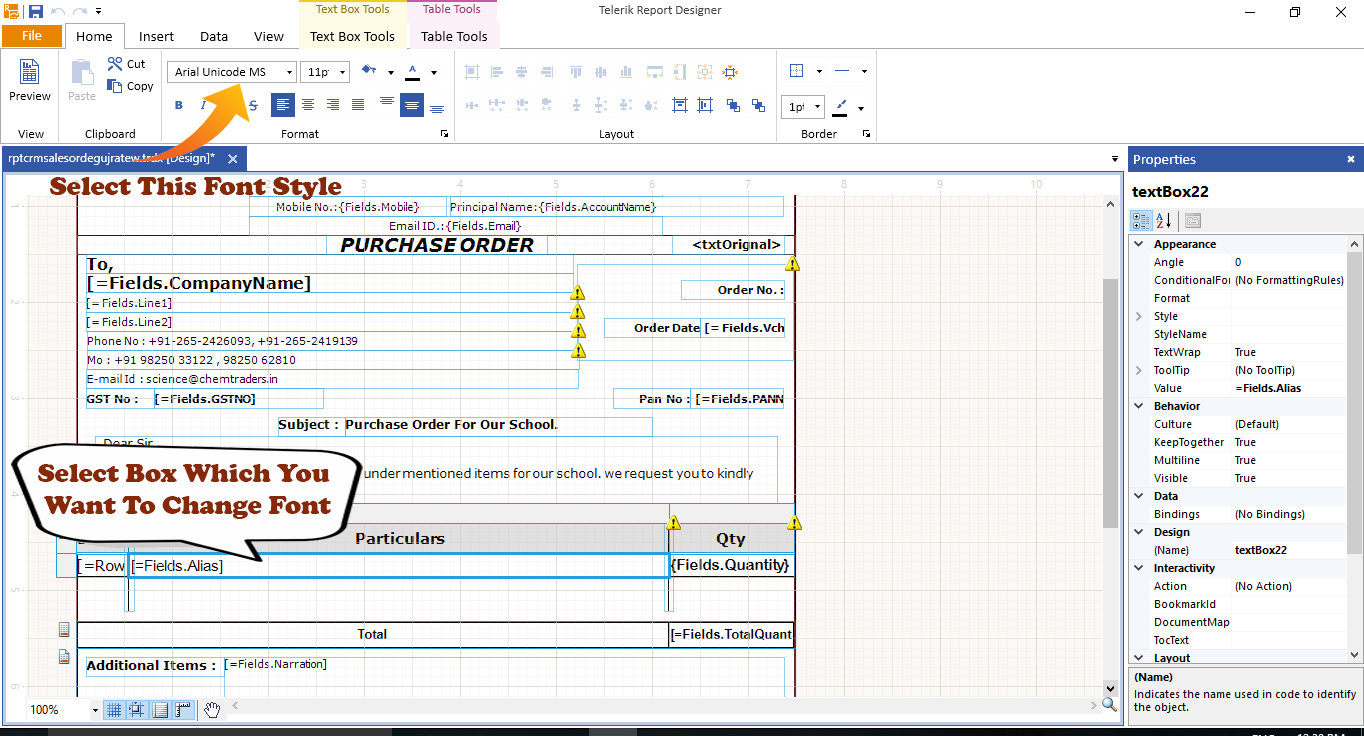
- Select the textbox that contains the text you want to change.
- In the font dropdown, choose Arial Unicode MS. See the example image below.
- Save the print file and return to eCount.
- Run a print preview to confirm the new font is applied.
💡 Tip: Use the same font for all text boxes that contain Unicode characters to avoid mixed‑font issues.
⚠️ Note: Selecting any font other than Arial Unicode MS will prevent Unicode characters from printing correctly.
✅ Summary
- Open the print file and select the target textbox.
- Set the font to Arial Unicode MS.
- Save and preview to verify the change.
- Ensure all Unicode text uses the same font to avoid printing issues.